
Three column layout
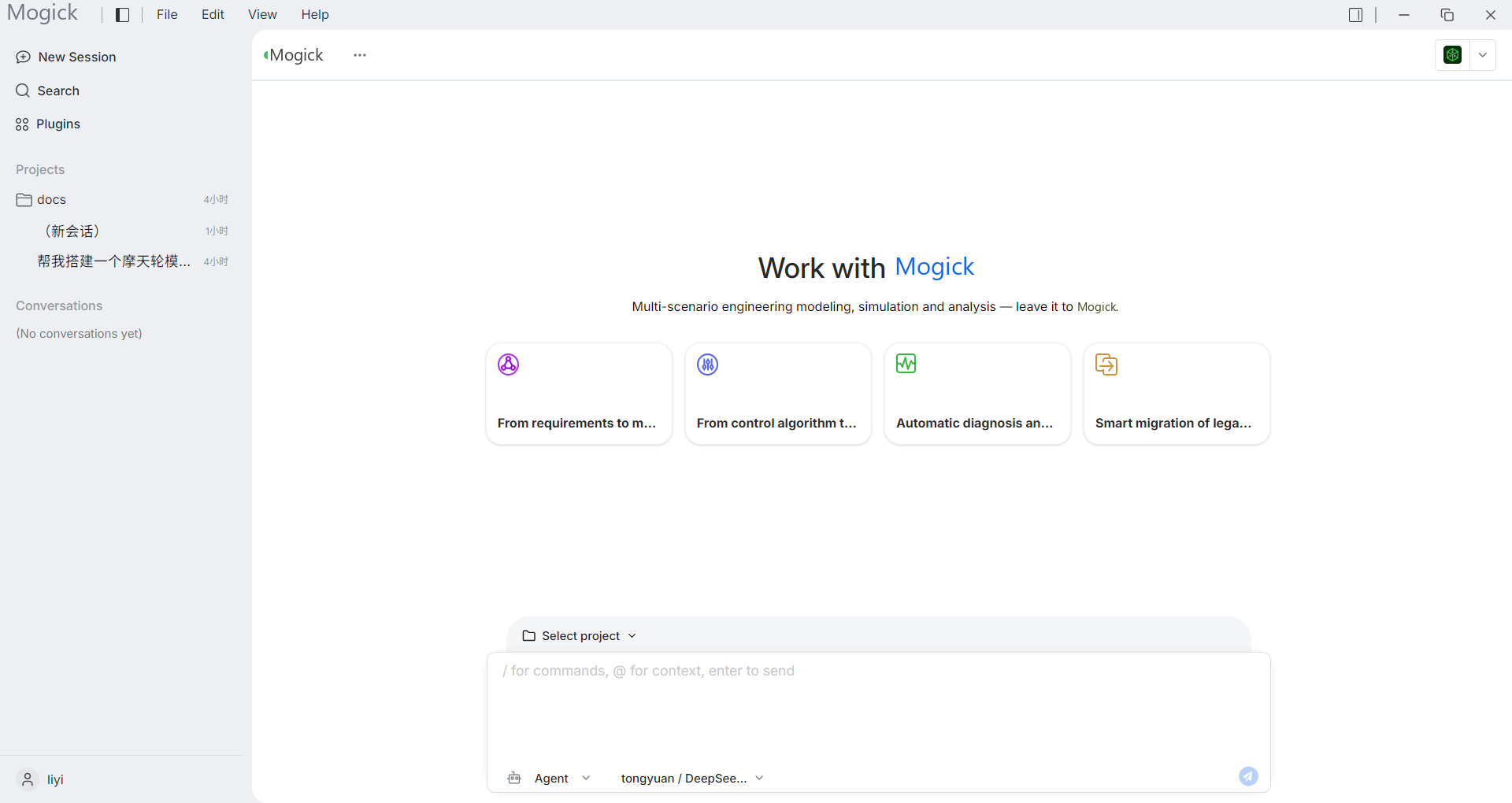
The main interface of Mogick desktop is composed of three columns. Three columns are visible at the same time, making it easy to complete project selection, AI session and result viewing in one window.
Left item bar
The project bar on the left is responsible for project and session entrance:
- View existing projects.
- Create new project.
- Activate the project.
- Expand the session under the project.
- Perform management operations such as renaming and deleting projects.
When there is no project, the interface will prompt you to select or create a project first.
Middle conversation bar
The middle column hosts AI collaboration:
- Input natural language tasks.
- Send messages to the local Mogick Agent.
- View responses, tool execution progress, and permission requests.
- Use the current project as the session working directory.
If there is no available model, the sending portal will prompt you to enable or configure the model in settings.
Product column on the right
The product column on the right is used to view AI running results and project files:
- Display project file tree.
- Preview text files.
- Open model text and graphical views of
.mofiles. - Open the embedded browser via the browser button.
- Update or display the results catalog via the refresh and catalog buttons.
Top title bar
The top title bar provides global access:
- Help menu: Help Documentation, License, Check for Updates, About.
- Terminal button: displayed after activating the project, used to open the integrated terminal.
- Window control: minimize, maximize, close.