
Account and login
Mogick desktop will use the same account status in the session area. When not logged in, some AI session capabilities will prompt you to log in first; after logging in, the current window will refresh the account status and continue to use the selected item as the session context.
Account Panel
Click the "Settings" button in the lower left corner of the workspace, and the account panel will pop up above.
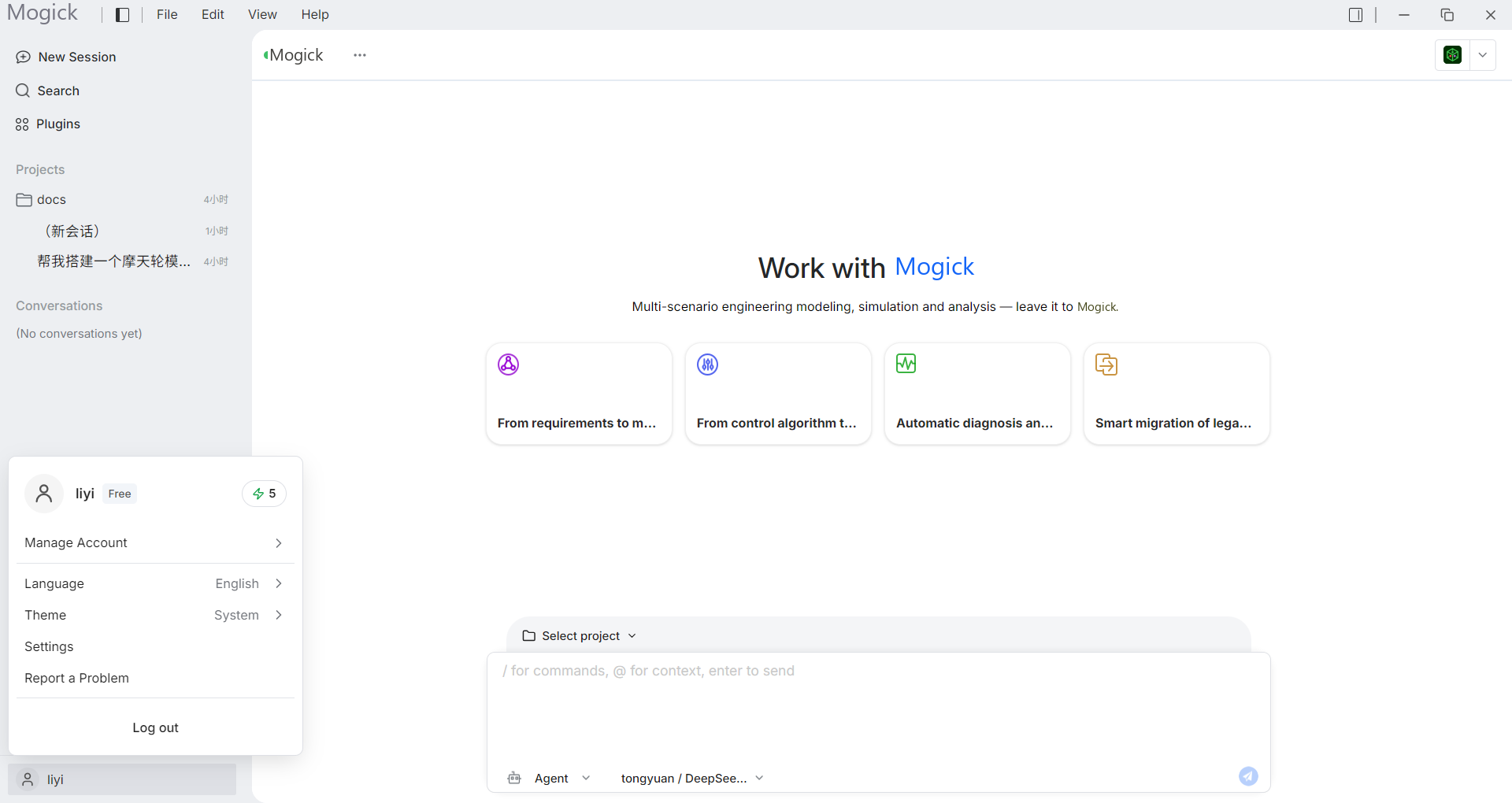
The panel contains from top to bottom:
- Account Overview: avatar, username, package label (such as "Free") and quota. When not logged in, the unlogged placeholder and default avatar are displayed.
- Upgrade benefits: Eye-catching upgrade button.
- Manage Account: A secondary pop-up layer pops up on the right side, including account settings, subscription management, and usage management, each with an external open logo.
- Language/Theme: Displays the current value, which can be selected in the submenu on the right.
- Settings: Open the Settings page.
- Logout: Logout entrance at the bottom ("Login" when not logged in).
Click outside the panel or click the entrance again to close the panel.
Login portal
When the interface prompts that you need to log in, click the login button to open the system default browser to complete the Tongyuan account login. After logging in, return to the Mogick desktop and the interface will automatically update the login status.
If the status does not change immediately after logging in, you can try:
- Wait a few seconds for the desktop to sync the account status.
- Resend the current message after returning to Mogick desktop.
- If you are still prompted that you are not logged in, close the login page and click the login portal again.
Log out
The account/settings area at the bottom left will host account-related entrances. After logging out, the current project list will remain on the local machine, but AI capabilities that require account status will require logging in again.
Logging out is suitable for the following scenarios:
- Switch to another Tongyuan account.
- Terminate on a shared computer.
- Troubleshoot abnormal login status.
Login exception handling
If the browser does not open the login page, please check whether the system default browser is available. If the desktop still prompts that you are not logged in after logging in, you can check [Troubleshooting](/troubleshooting/general#Connection failed) first and then try logging in again.