
.mo model view
Mogick desktop provides a special model viewing entrance for .mo files. After clicking the .mo file in the file tree on the right, a tab with the model name will open in the right workspace. Two switching pages, "Text View" and "Graphic View", are provided in the tab. The entire viewing process is read-only and the model is not modified.
After opening, it will enter Text View by default.
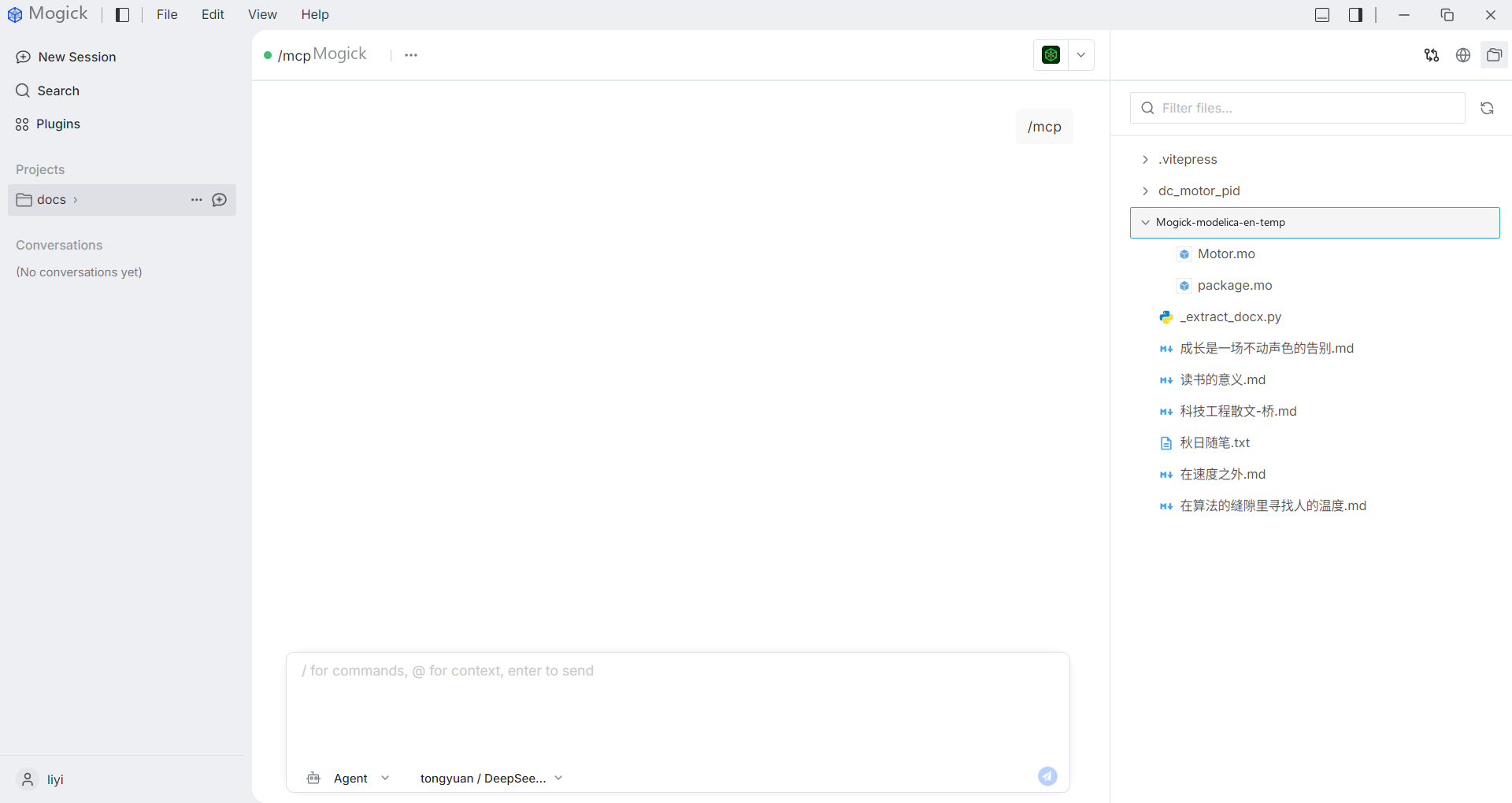
Text view
The text view displays the .mo model source text in a read-only, syntax-highlighted format. It's suitable for quick confirmation:
- Model name.
- Variables and equations.
- Whether the file is a valid Modelica model text.
Graphical view
Switch to "Graphics View" to render the model into a structure diagram composed of components and connections. It is suitable for "understanding" the composition of the model without leaving Mogick.
- You can use the mouse wheel to zoom, drag and pan in the graphics view.
- This issue is for read-only viewing and does not support element selection/highlighting or graphic editing.
- Switching between text view and graphics view keeps the current file and does not reopen tabs.
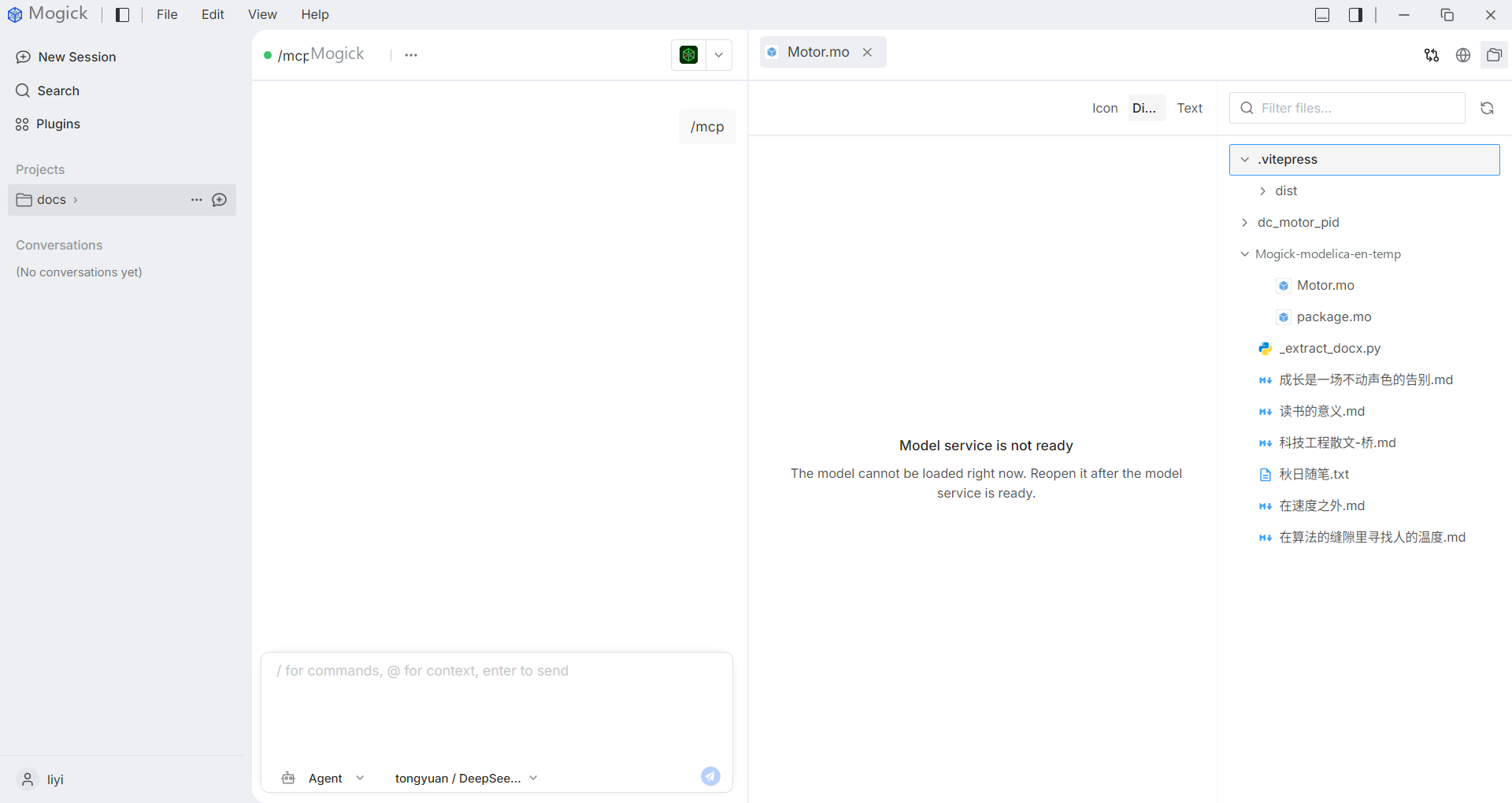
Graphics rendering relies on native model parsing and graphics service readiness. The loading status is displayed before rendering.
Exception boundary
- If the model service is not ready, the model is invalid, data retrieval or rendering fails, the interface will display a readable error status and provide "retry" without a blank screen or crash; if necessary, you can first use the text view to confirm the model content.
- Non-
.mofiles will not enter the model dual view, but will be previewed as normal text. If a non-.mofile is requested through the underlying interface, the system returns a readable error indicating that the file is not a model file.