
Plugins and Skills
Select Plugins in the left sidebar. The page has two top-level views:
- Plugins lists MWORKS product connectors and their runtime status.
- Skills manages user-installed Skills and lets you start a conversation with one.
Screenshots on this English page reuse the Chinese-language UI from the same verified run.
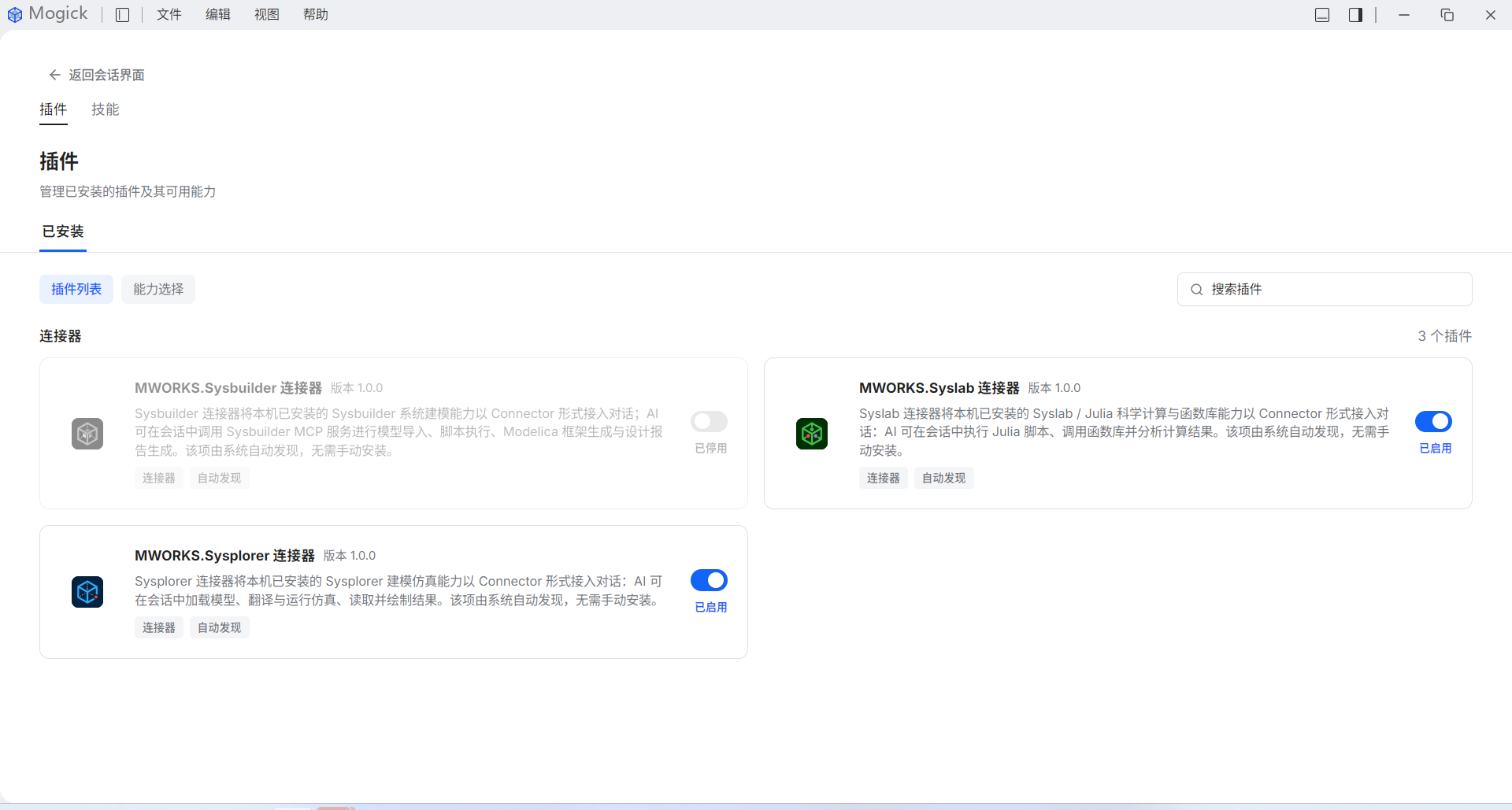
The complete Mogick window below comes from the verified build. This profile contains three auto-discovered connectors: MWORKS.Sysbuilder, MWORKS.Syslab, and MWORKS.Sysplorer.
Inspect and enable a connector
Each plugin card shows the connector name, version, description, discovery method, and enabled state. Use the search field to filter by product or connector name.
- Select a card to open its details.
- Check the Connected / Auto-discovered status at the top.
- Use the top-right switch to enable or disable an available connector.
- Auto-discovered MWORKS connectors are product components and are marked Cannot uninstall.
Disabling a connector prevents new sessions from relying on its contribution. An already-running session may retain an established connection, so create a new session when verifying an enable/disable change.
Verify the effective capability
Do not infer task capability from the Enabled label alone. In the details view, verify all of the following:
- the connector reports Connected;
- the MCP service shows a tool count and a refreshed runtime;
- the Skills / Rules required by the task are present.
During this run, the MWORKS.Sysplorer connector reported version v26.5.0.2361, one sysplorer-mcp service with 13 tools, and 17 Skills / Rules. Its MCP summary covers model loading, translation, simulation, result reading, and plotting.
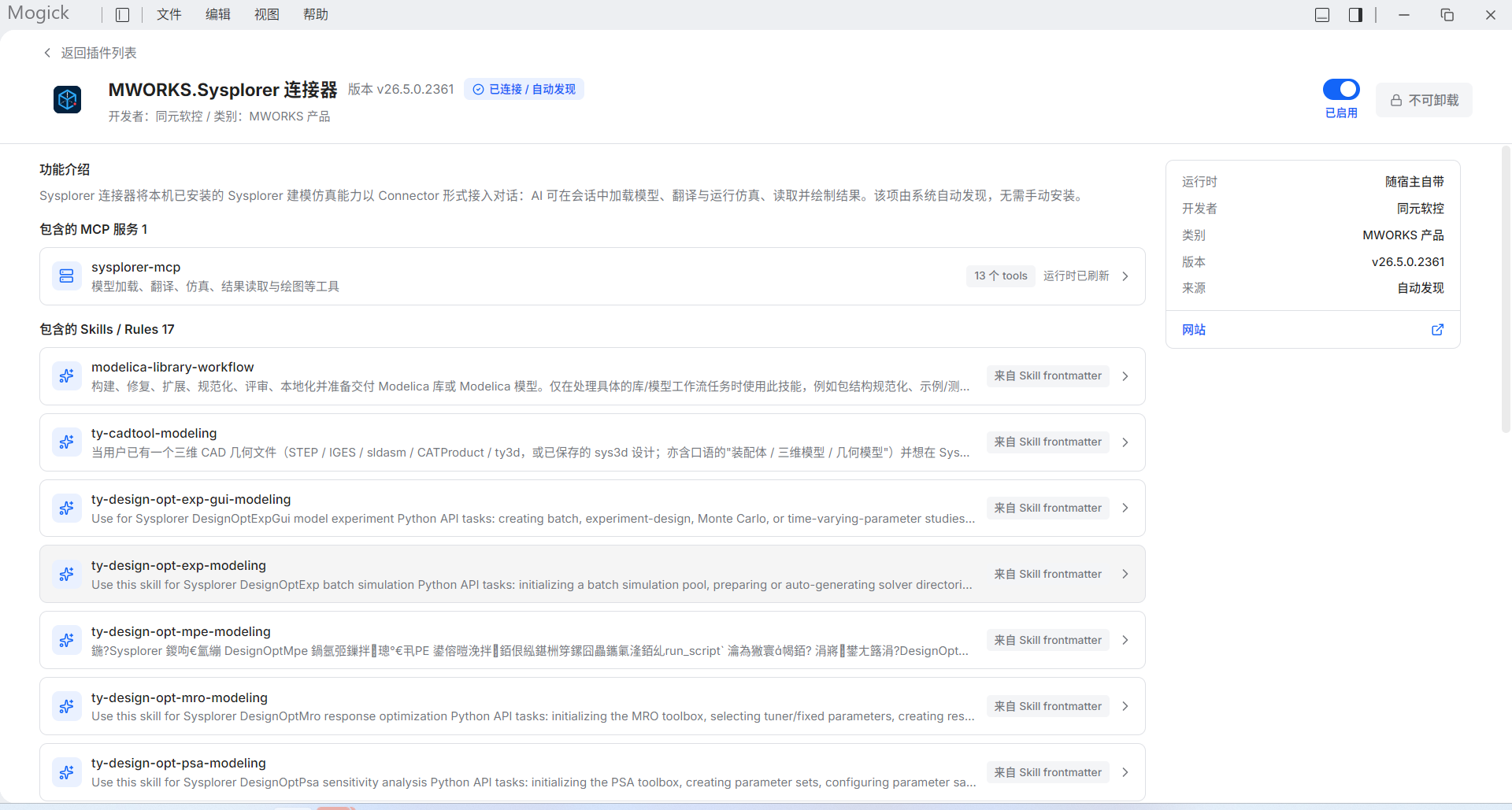
If the details initially show zero tools or a pending refresh, wait for the runtime to load and refresh the plugin page. Treat the capability as ready only after an actual tool count appears.
Capability selection
Capability selection only lists user-selectable capabilities that currently have at least two candidate providers. If none meet those conditions, the page shows No selectable capabilities. This is a normal empty state and does not mean that connector discovery failed.
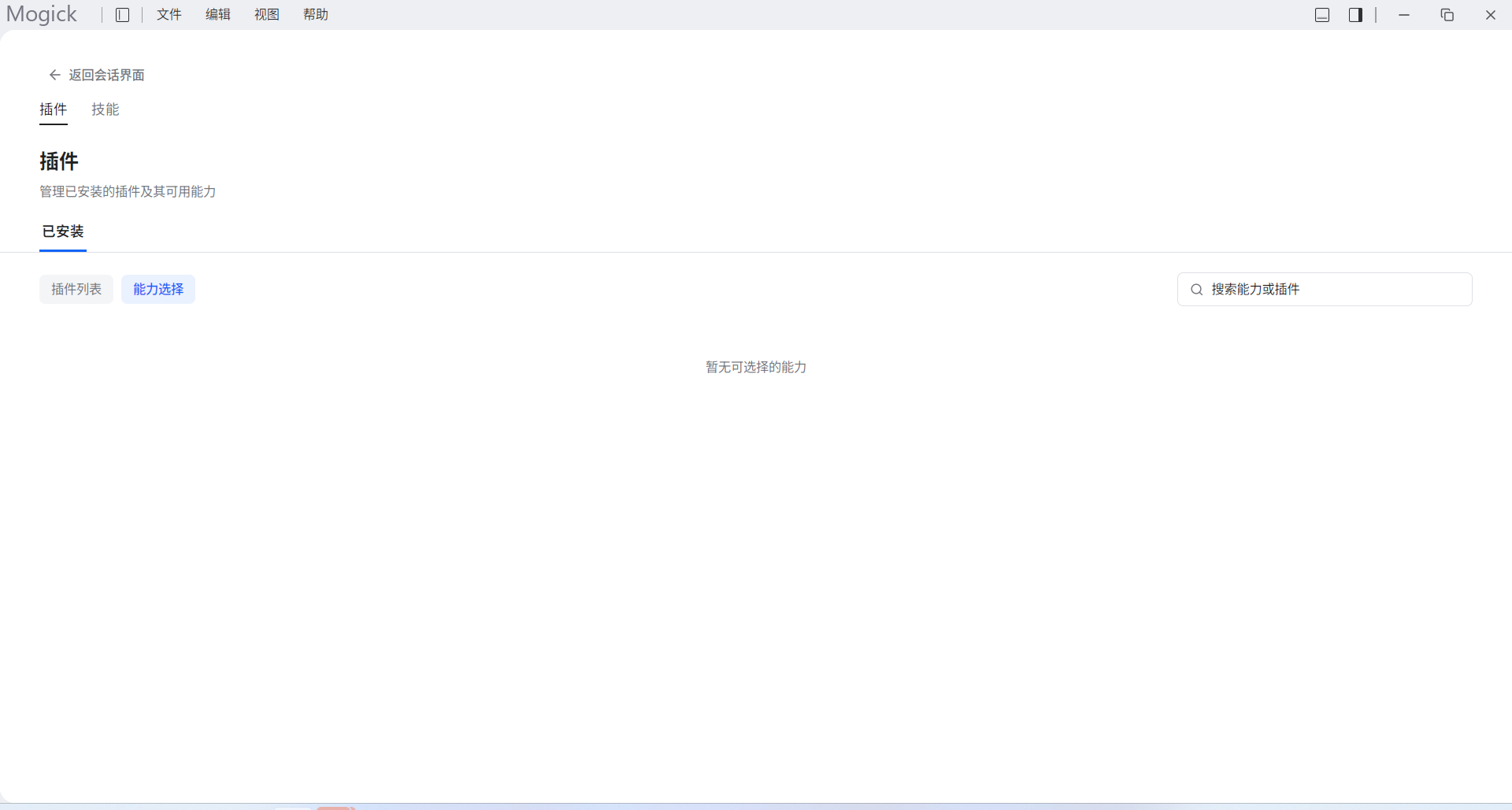
Do not expect an old Modelica Lite / Sysplorer selector to be present in every build. Use only the candidates shown by the current application.
Manage Skills
Switch to Skills to manage user-level Skills. The verified UI does not have a separate Skill Market tab. It provides these actions instead:
- Refresh rescans Skill directories.
- Import from TRAE imports an existing TRAE Skill.
- Local install selects and installs a local Skill.
- Search Skills filters by name or description.
- The card switch enables or disables the Skill for later sessions.

Select a Skill card to inspect its state, filesystem path, plugin dependencies, and SKILL.md body. The details footer provides Uninstall and Use in conversation:
- Use in conversation returns to chat and makes the Skill available to a new task.
- Uninstall removes a user-installed Skill; confirm that other workflows do not depend on it first.
Troubleshooting order
If a conversation does not call the expected MWORKS capability, check in this order:
- The plugin card is enabled.
- The details report Connected and the MCP service has a non-zero tool count.
- The required Skill / Rule is listed, or the user-level Skill is enabled.
- Capability selection does not require a manual provider choice.
- Retry in a new session and confirm that the project directory actually contains the expected model, script, or result files.
Verify deliverables
A connected plugin and a textual Agent response do not prove that a model was built or a simulation passed. Documentation should claim completion only when project files, tool results, or result curves can be inspected.