
model
The model used by Mogick desktop when talking to AI can be directly selected and switched in the conversation input box.
Switch model
At the bottom of the session input box, click the current model name to open the model list, from which you can select the model to be used in this session. Hover the mouse over the model name to view the capabilities supported by the model (for example, whether it supports multi-modal input such as images).
The list of optional models is determined by the runtime and your account configuration; the models available in the enterprise version are subject to the configuration of your organization.
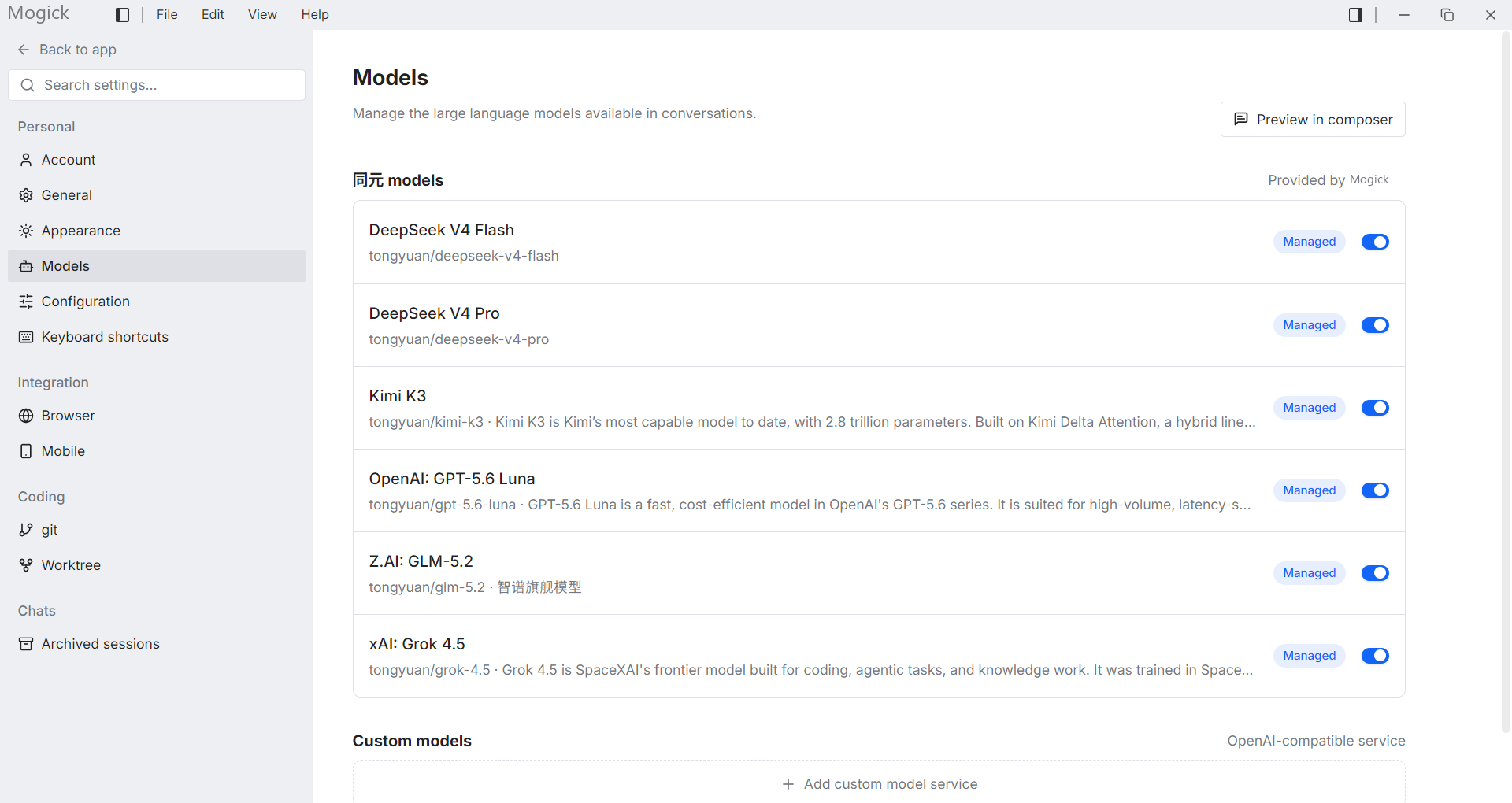
View in settings
In addition to the input box, the "Model" category in the settings will also list the currently available models for you to view and select the default model.
Note: The current desktop model comes from runtime/account configuration; whether the model supports multi-modality and other capabilities is determined by the model itself, which will affect whether controls such as image upload in the input box are available.