
Integrated terminal
The integrated terminal embeds a real interactive terminal at the bottom of the main workspace. The working directory follows the current project by default, which facilitates a closed loop between "viewing AI products → running commands to verify by yourself" without cutting the window. The current integrated terminal uses PowerShell.
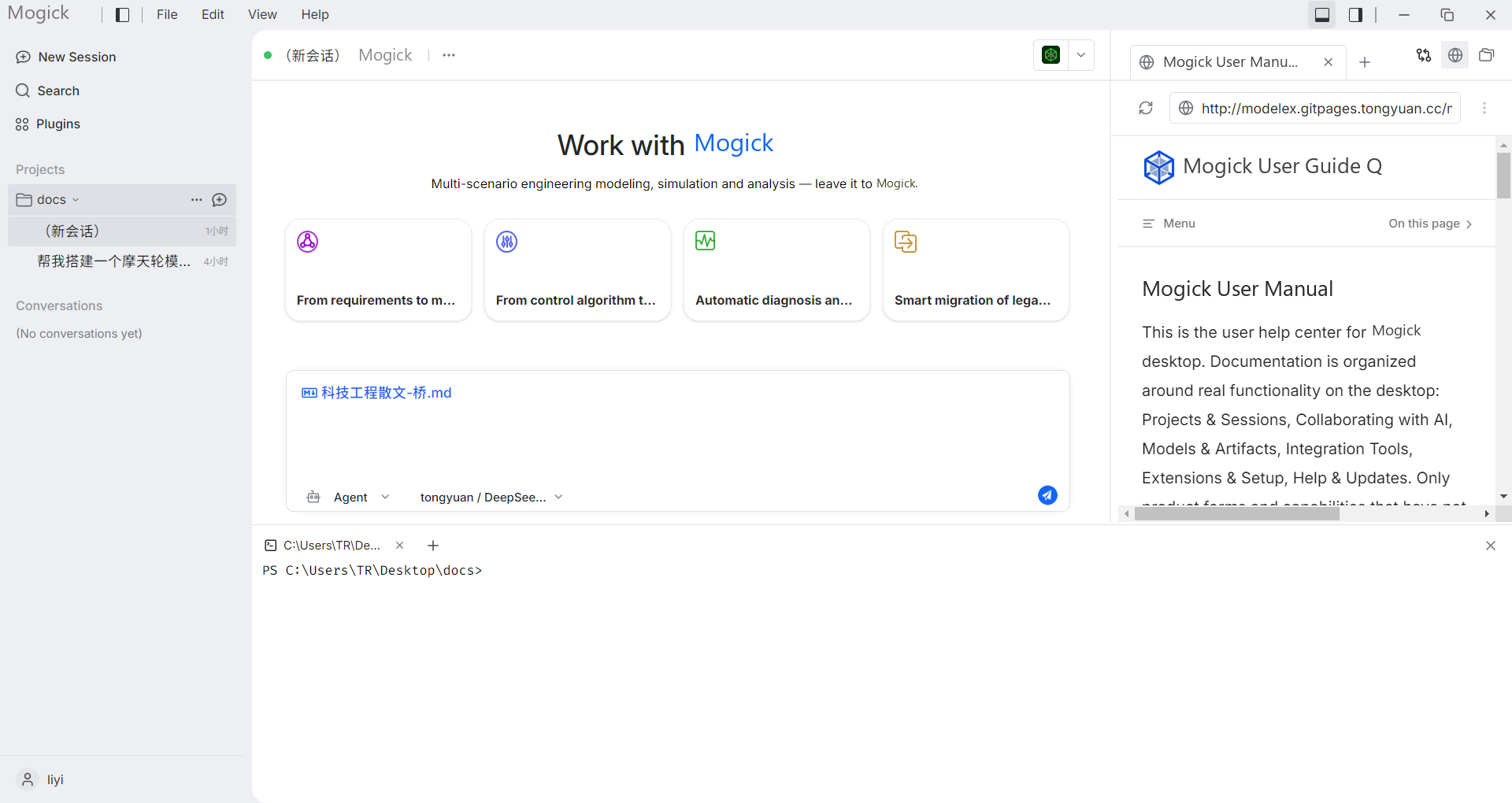
Open terminal
There are multiple entrances to open/create a new terminal:
- "New Terminal" in the "View" menu at the top.
+in the terminal tab bar.- Terminal switch shortcut keys.
- The terminal icon button in the activity area in the upper right corner of the window.
After opening, the bottom terminal panel is expanded and focused, and a PowerShell is launched:
- When there is a current project, the working directory is the project root directory.
- When there are no projects, the terminal button in the upper right corner will be hidden, but it can still be opened from "View → New Terminal". The working directory is the user directory (such as
C:\Users\<username>).
Execute command
Type a command in the terminal and press Enter to interact with PowerShell in real time, with the output echoed verbatim. Build, test, script, or normal shell commands can be executed; interactive programs (such as REPL) also work fine.
- The terminal output can be scrolled up and down, and the buffering limit is about 1000 lines. After exceeding, the oldest line is discarded.
- When the terminal is focused, except for the search and terminal switch shortcut keys, other keys (including
Ctrl+C/Ctrl+V) are transparently transmitted according to the default behavior of PowerShell and will not be intercepted by the application.
If you need to submit the terminal output to AI for analysis, you can copy the relevant output and paste it into the session.
Multiple terminal labels
The terminal supports multiple tabs:
- Click
+to create a new PowerShell terminal. - Click a label to switch to different terminals. The current label is highlighted and the contents of each terminal are independent of each other.
- Click the Close button on the label to close the terminal and its shell process will be recycled.
- After closing the last terminal, the entire terminal panel will be hidden and the editing area will be full.
The upper edge of the panel can be dragged to adjust the height; dragging it below the threshold height, or clicking the close button on the panel will close the panel as a whole, and can then be reopened through any entrance.
Find output
Press Ctrl+F in the terminal area to open the search box. After entering the keyword, all hits will be highlighted and positioned, the match count will be displayed, and you can jump between previous/next. Press Esc to close. If there is no hit, "No Result" is displayed.
Right click operation
The right-click menu of the terminal area includes:
- Copy
- Paste
- Select all
- Clear screen
- Find it in the help documentation
When no text is selected, "Copy" and "Find in Help" are grayed out. Copying and pasting are only performed through this right-click menu and there are no additional shortcut keys.
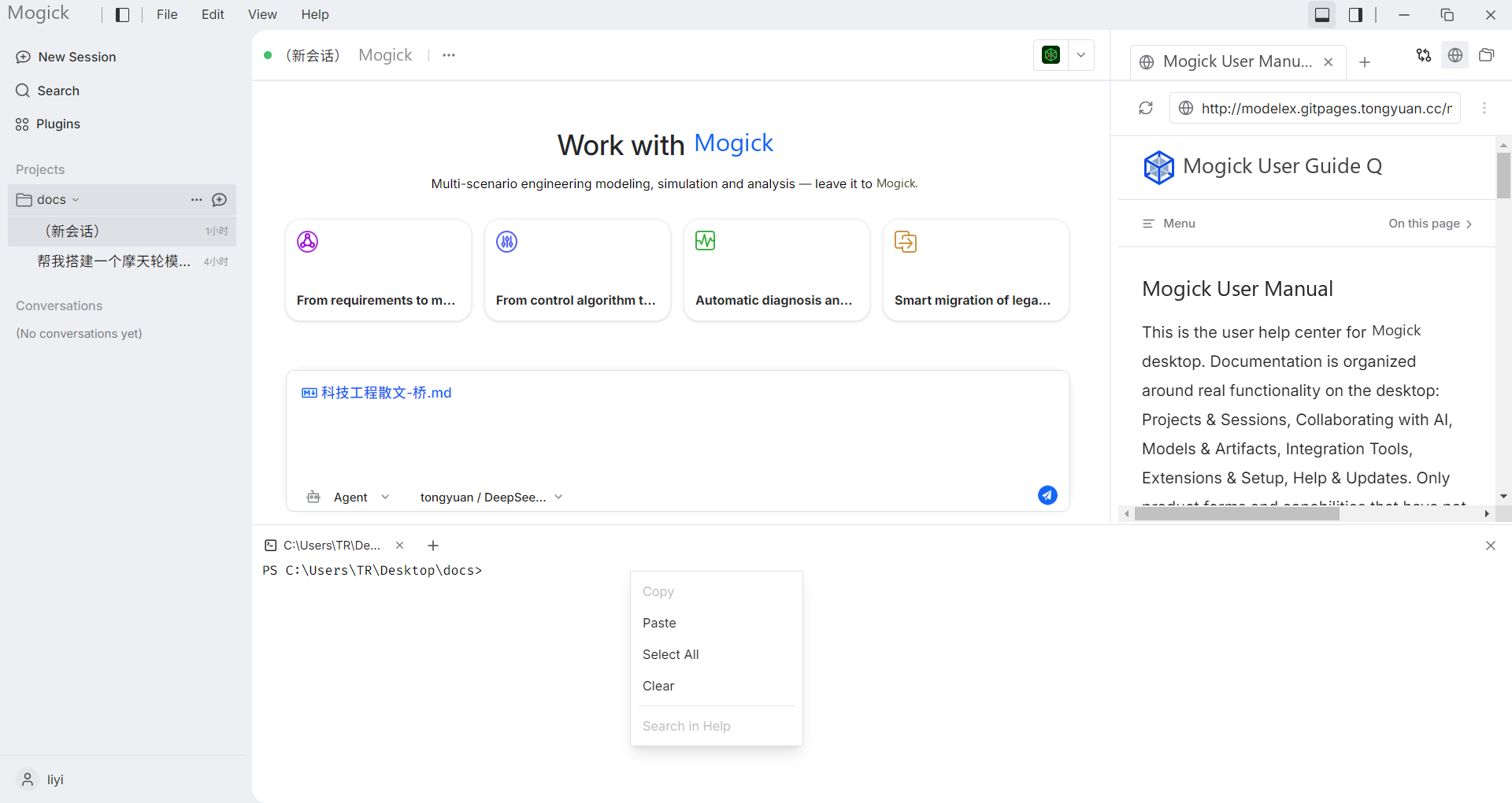
Process and life cycle
- When the PowerShell process crashes unexpectedly, the system will recycle the remaining processes and automatically restart a new PowerShell in the same label (the working directory remains unchanged).
- After typing
exitin the shell to exit normally, the label is marked as ended and can be closed manually. - When switching to a different project or session, all current terminals will be closed and the terminal panel will be hidden; they need to be reopened under a new project.