
Context (@ reference)
When you talk to an AI, you can add context to it to make its answers more precise. Mogick desktop uses @ in the input box to reference the context.
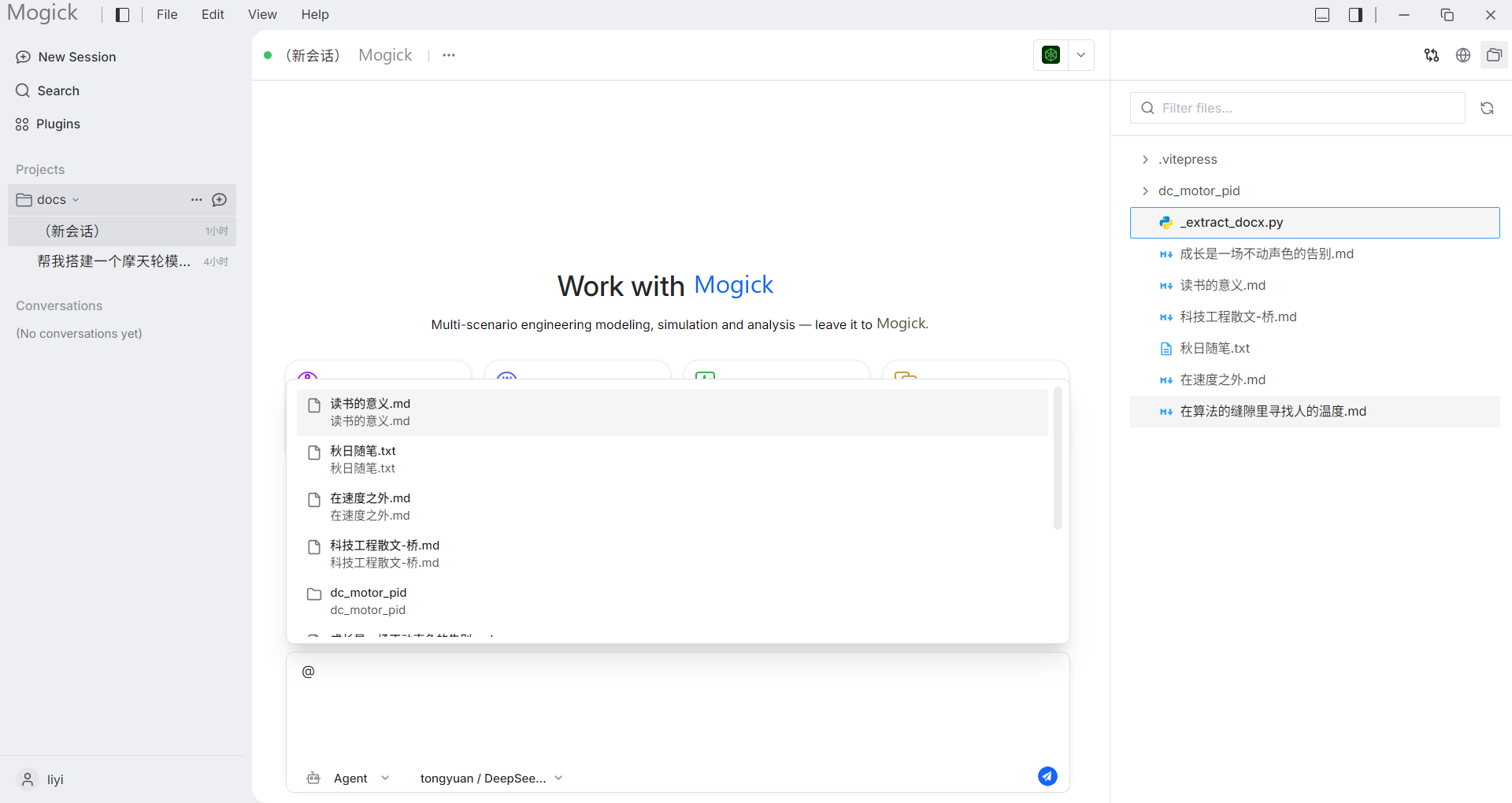
Use @ to add context
Enter @ in the session input box, and a list of referenceable contexts will pop up. Content related to the current project is usually recommended first, and you can also continue to enter keyword searches. Referenceable context types include:
- Documents
- folder
- URL
- Terminal output
- code snippets -Skill
- symbols
- pictures
You can add context from multiple different sources depending on the problem combination (e.g. referencing both a file and a piece of terminal output).
Join the chat from right-clicking on the file
In addition to @, you can also add the file to the attachment area above the input box as context by right-clicking on the file in the [Product Workspace] (/desktop-app/artifact-workspace) on the right and selecting "Add to Chat". Repeated addition of the same file will not produce duplicate attachments.
Note: The desktop uses
@to reference the context (not#); since there is no code editor, there is no entrance to editor scenarios such as "select the code in the editor and then join the conversation". The corresponding capabilities are carried by the file/code snippet reference of@and the right-click on the file to "add to chat".