
dialogue
Mogick desktop uses the middle chat bar as the main entrance for collaboration with AI. You describe your requirements here, and AI will model, write code, run commands, generate products, and present the process and results in a structured conversation.
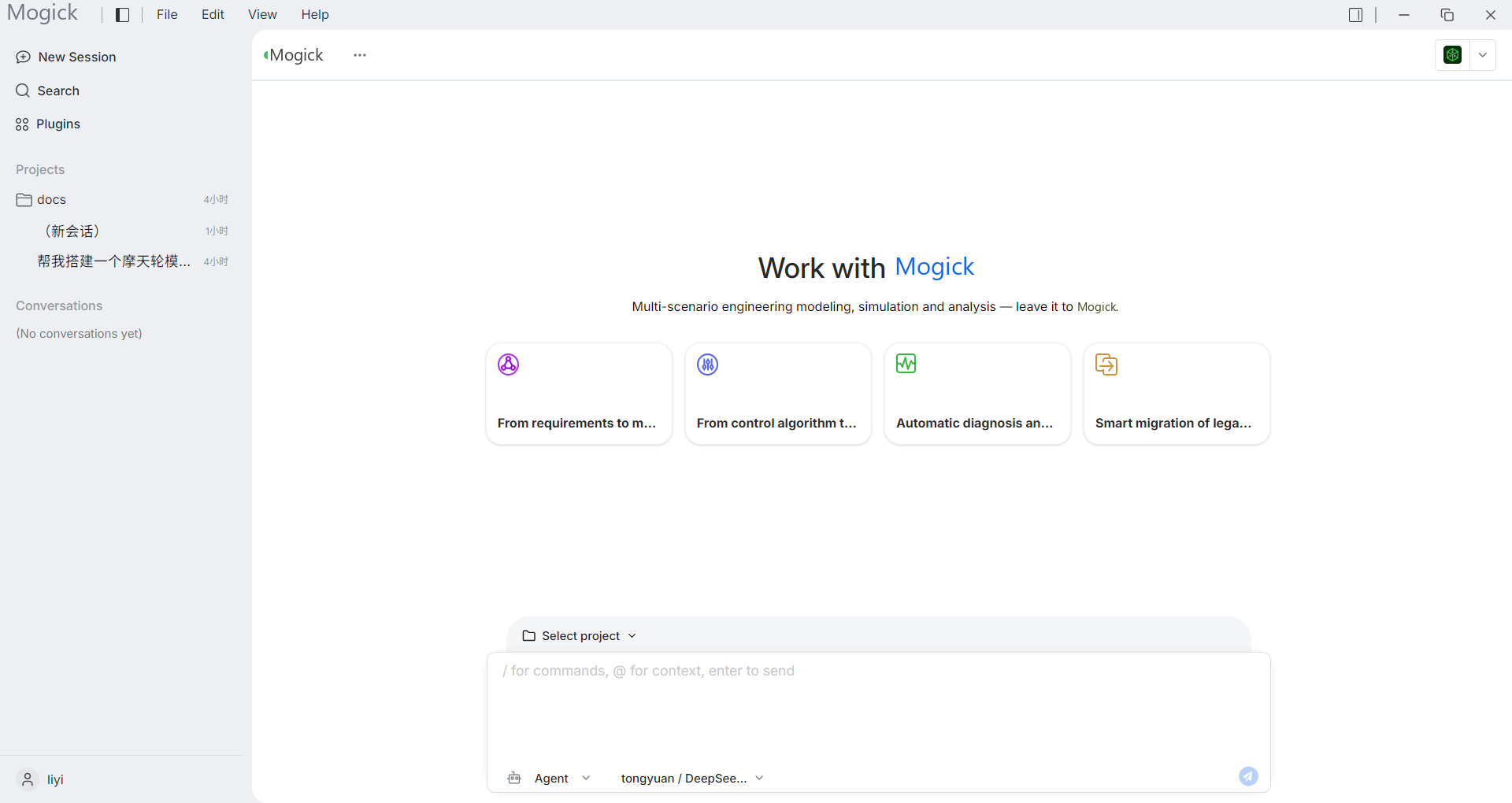
Input box
The input box at the bottom of the session is where the conversation is initiated. The prompt text is "/ is used for commands, @ is used for context, and press Enter to send a message." The controls on the input box include:
- Working Mode: Switch the working mode of AI (see Working Mode).
- Model: Select the model used in this conversation (see Model).
- @Context: Enter
@to reference files, terminal output, etc. as context (see Context). - /Command: Enter
/to trigger a command (see Commands). - Send: Click the Send button or press Enter to submit.
Image input
You can use images as context, such as error screenshots or reference images. Support:
- Drag pictures from outside into the input box.
- Drag an image from the project file tree into the input box.
- Paste the image from the clipboard into the input box.
Whether images can be uploaded depends on whether the current model supports multi-modal input.
View replies
After sending, the AI's reply will be presented in real time in a chunked, structured way: rich text and code blocks, collapsible processes, result file cards, file editing cards, and a real-time to-do on the right. For details, see AI Output and File Card.
Note: The desktop version is centered on the chat bar and does not have a code editor, so it does not provide interaction with editor scenarios such as "in-editor in-line dialogue" or voice input.