
Product workspace
The product workspace on the right is used to view files and AI running results in the current project. It is not a simple picture display area, but an interactive file and result panel.
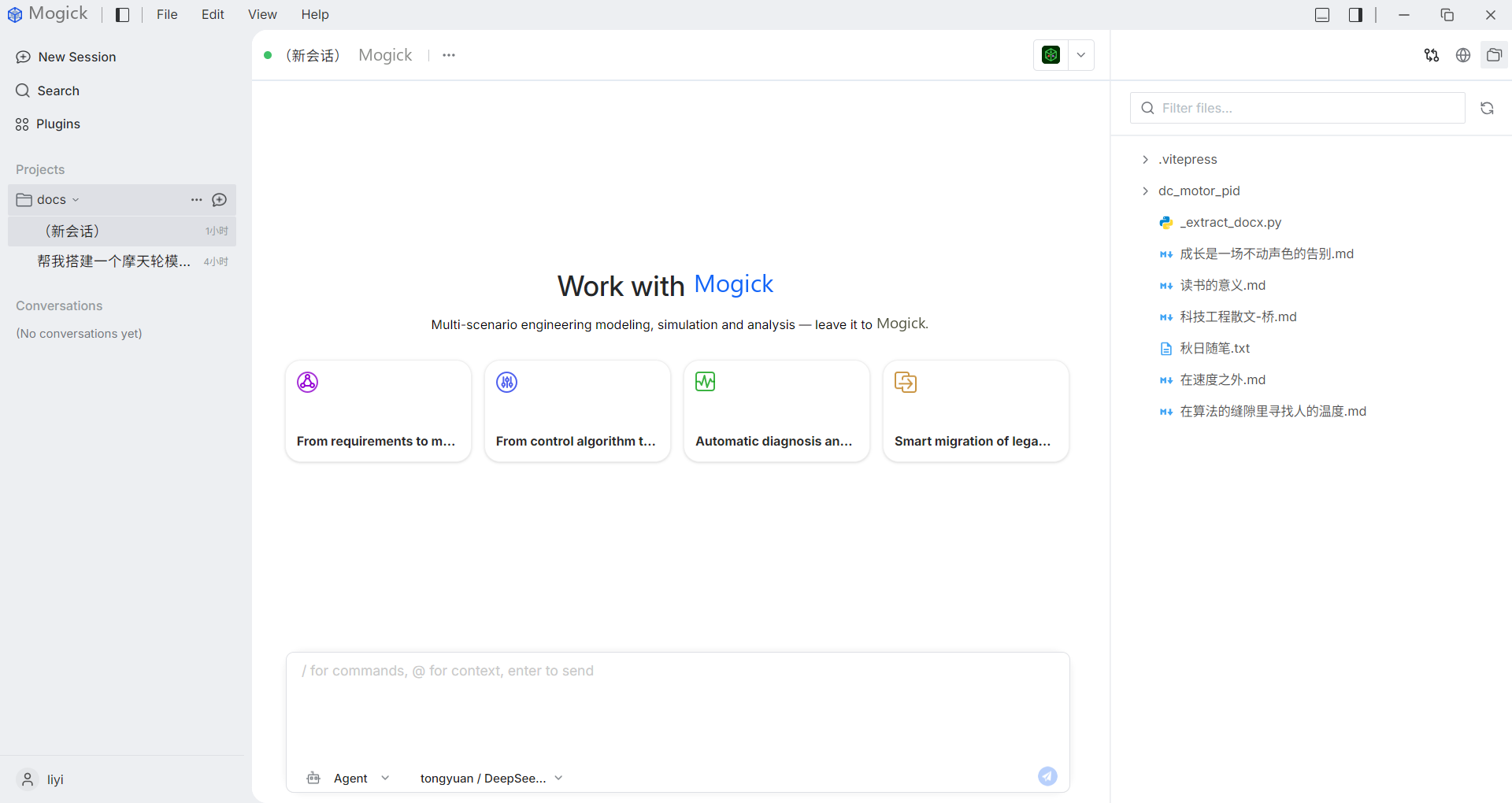
File tree
After activating the project, the project directory will be displayed on the right. Directories can be expanded and sub-files will be loaded and displayed lazily.
Common operations:
- Click on the table of contents to expand or collapse it.
- Click on the file to open the preview.
- Use the refresh button to update the results catalog.
- Use the Directory button to display the resulting directory in the system file manager.
File preview
After clicking on a normal text file, a preview of the file content will be displayed on the right. Good for viewing:
.txtresults..csvSummary of results.- Logs and documentation.
- AI generated Markdown or script snippets.
The .mo file will enter a special model viewing entrance, see .mo model viewing.
Right-click menu
The file right-click menu only takes effect for files, and the same menu will not pop up for directories.
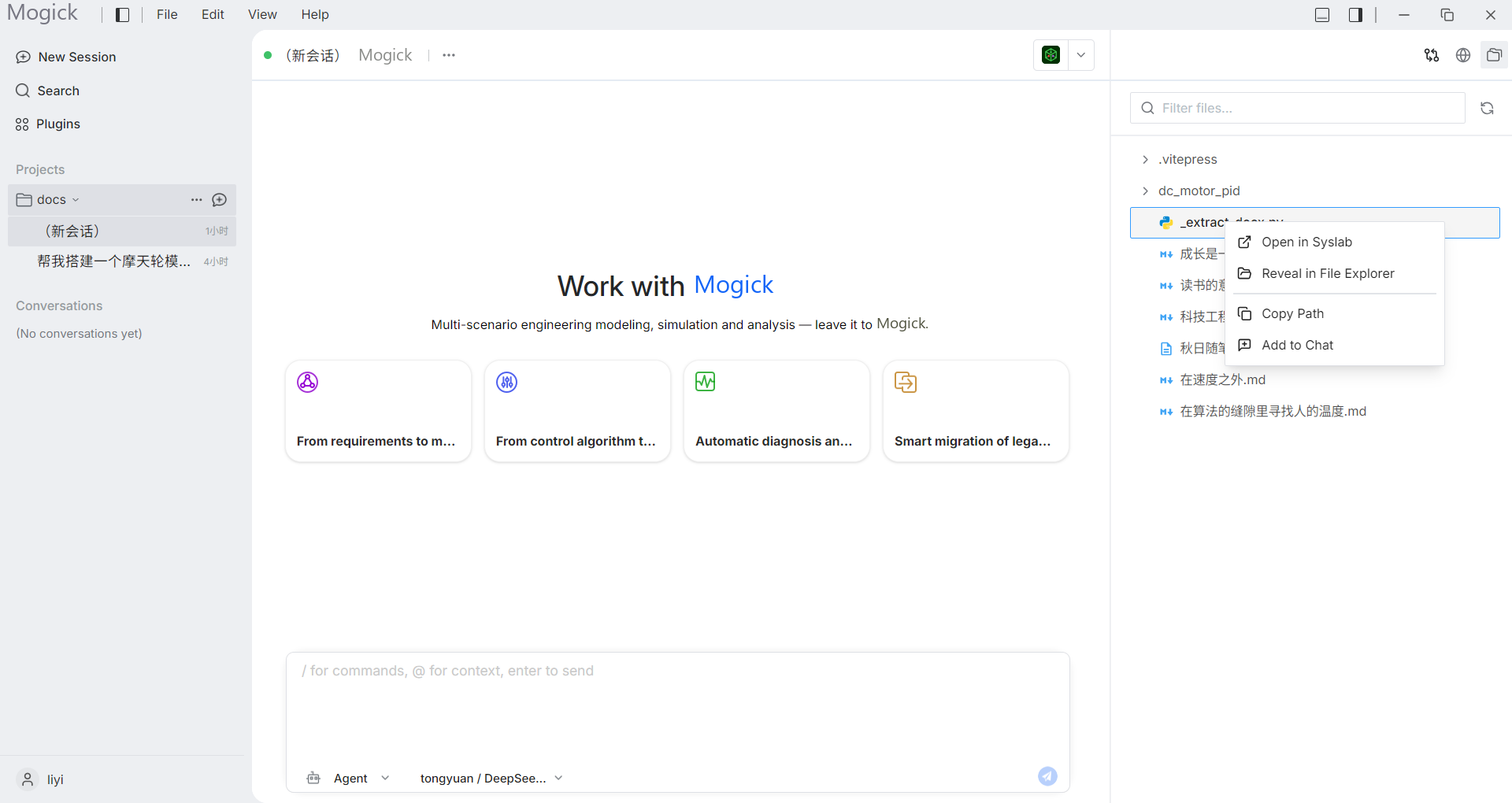
Menu items include:
- Open with external tools by file type.
- Copy absolute paths.
- Add to chat.
The first item of different types of files will be different:
| File Type | First Item |
|---|---|
.mo | Open in Sysplorer |
.jl / .py / .m | Open in Syslab |
| Other files | Open with default program |
Only when the target is Sysplorer / Syslab and the corresponding tool is not detected, the first item will be grayed out and an undetected prompt will be displayed; "Open with default program" is always available.
Copy path and join session
After selecting "Copy Path", Mogick will write the absolute path of the file to the clipboard, and a "Copied Path" prompt will pop up in the corner of the interface, which will automatically disappear after about 2 seconds.
After selecting "Add to Chat", the file will appear in the attachment area above the conversation input box. The attachment area and the input text are separate. Repeated addition of the same file will not generate duplicate attachments; if the file is not needed, it can be removed on the attachment tab. If there is no active session currently, a session will be automatically created before adding the file.