
External tool linkage
After processing a task, you often need to switch to external tools to continue: open the model in Sysplorer, modify the code in VS Code, view the product in the file manager, or execute commands in the system terminal. Mogick desktop provides two types of entrances, which will open the corresponding tools with the current project directory as the context.
Open in external tool (top button)
After activating the project, there is an "Open in external tool" split button on the far right side of the toolbar at the top of the session: the main area on the left is a tool icon, and the right side is a drop-down arrow.
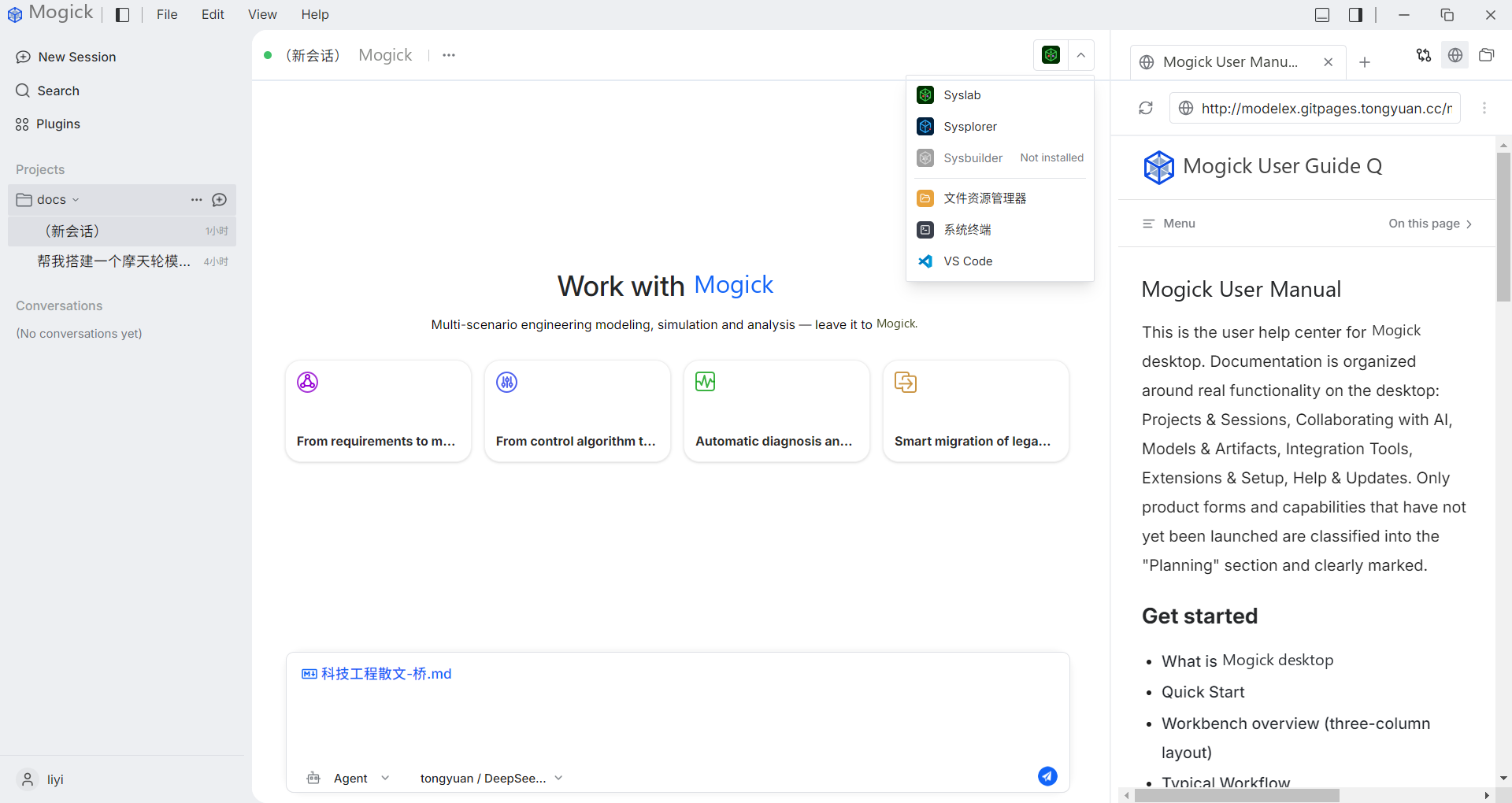
Click the arrow on the right to expand the menu. The menu is divided into two groups, separated by a dividing line:
- MWORKS Tools: Syslab, Sysplorer, Sysbuilder, SysCAD. Those that have been detected and installed can be clicked directly; those that are not installed will be grayed out and marked "Not Installed".
- Universal Entrance:
- File Explorer - Locate the current project directory in the system file manager.
- System Terminal - Open a system terminal window in the current project directory (different from the Integrated Terminal within the application).
- VS Code - Open the current project directory with VS Code. It only appears when VS Code is detected on this machine. If it is not installed, the entire item will not be displayed.
File Explorer and System Terminal are built-in capabilities of the operating system and are always available.
Quick opening and button memory
If you don’t want to expand the menu every time, you can directly click the main area on the left side of the button and use the tool currently pointed to in the main area to open the current project with one click.
- The main area icon will point to the tool that was successfully opened last time in this session; when this session has not been used, it will degrade to the first openable tool in the list. -Hovering the main area will prompt "Open with X".
- This memory is independent by session: different sessions are remembered separately and do not affect each other.
Sysplorer's open object
When Sysplorer is selected, the object to be opened is the .mo model rather than the directory: package.mo in the root directory of the workspace is taken first, otherwise the first .mo in alphabetical order in the root directory is taken. If neither is found, it falls back to opening the directory. The remaining MWORKS tools and general portals have the project directory as their context.
Exceptions
- The selected tool is not installed: the menu item is grayed out and a hover prompt says "The tool was not detected."
- No current project: Clicking on the general entrance will prompt "There are currently no open projects" and will not be silent.
- Tool startup failure (path failure, process pull-up failure): a readable error message is given, and the menu does not remain.
- The tool is already running: Reuse an existing window to open the current project without starting it repeatedly.
Right click on the file to open it
Right-click a single file in the file tree on the right, and you can also call external tools by file type.
Sysplorer
.mo files correspond to Sysplorer by default. Right-click the .mo file, and if Sysplorer is detected, you can select "Open in Sysplorer"; if it is not detected, the menu item will be grayed out and prompt "Sysplorer not detected".
Syslab
.jl files correspond to Syslab by default. Right-click the .jl file, and if Syslab is detected, you can select "Open in Syslab"; if it is not detected, the menu item will be grayed out and prompt "The tool was not detected."
Default program
Other file types will be opened using the system's default program, suitable for viewing CSV, images, logs, or file formats already associated with the system.
Add to chat
After right-clicking the file and selecting "Add to Chat", the file will enter the attachment area above the input box. Repeated addition of the same file will not generate duplicate attachments, and attachments can also be removed from the attachment area.