
Plan and Agent modes
Mogick CLI provides two complementary modes. Agent mode is the default execution mode: it can read and write files, run shell commands, work with Git, and call MCP tools, subject to the active permission policy. Plan mode is a strictly read-only environment for exploring the codebase, analyzing a problem, and preparing an execution plan before any changes are made.
Comparison of two modes
The modes differ in both tool availability and permission behavior:
| Dimensions | Agent (default) | Plan |
|---|---|---|
| File operations | Full read and write permissions | Read-only (file.read, file.grep, file.glob, file.list_dir, etc.) |
| Shell commands | Available, subject to permission checks | Unavailable |
| Git operations | Built-in read-only tools plus the shell for write operations | Built-in read-only tools (git.status, git.diff, git.log, git.show) |
| MCP Tools | All available | Not available |
| Mode switching | Default mode | Press Shift+Tab to switch between Agent and Plan modes |
| TUI sidebar | Display current permissions policy | Display Plan logo and task list |
In Agent mode, the sidebar shows the active permission policy (read, workspace, auto, or yolo). In Plan mode, it shows the planning state and task list, making the active mode visible at a glance.
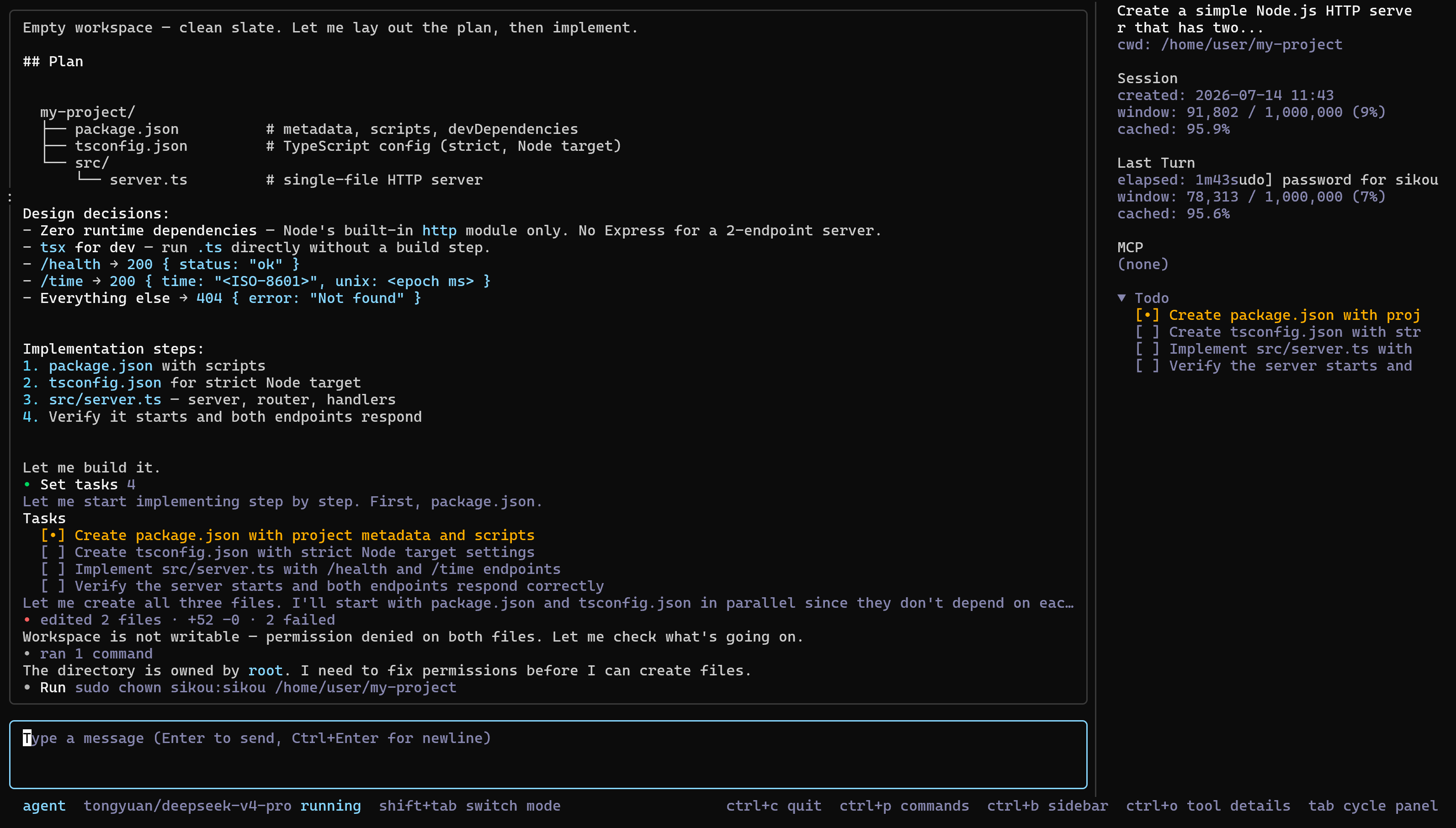
Agent Mode
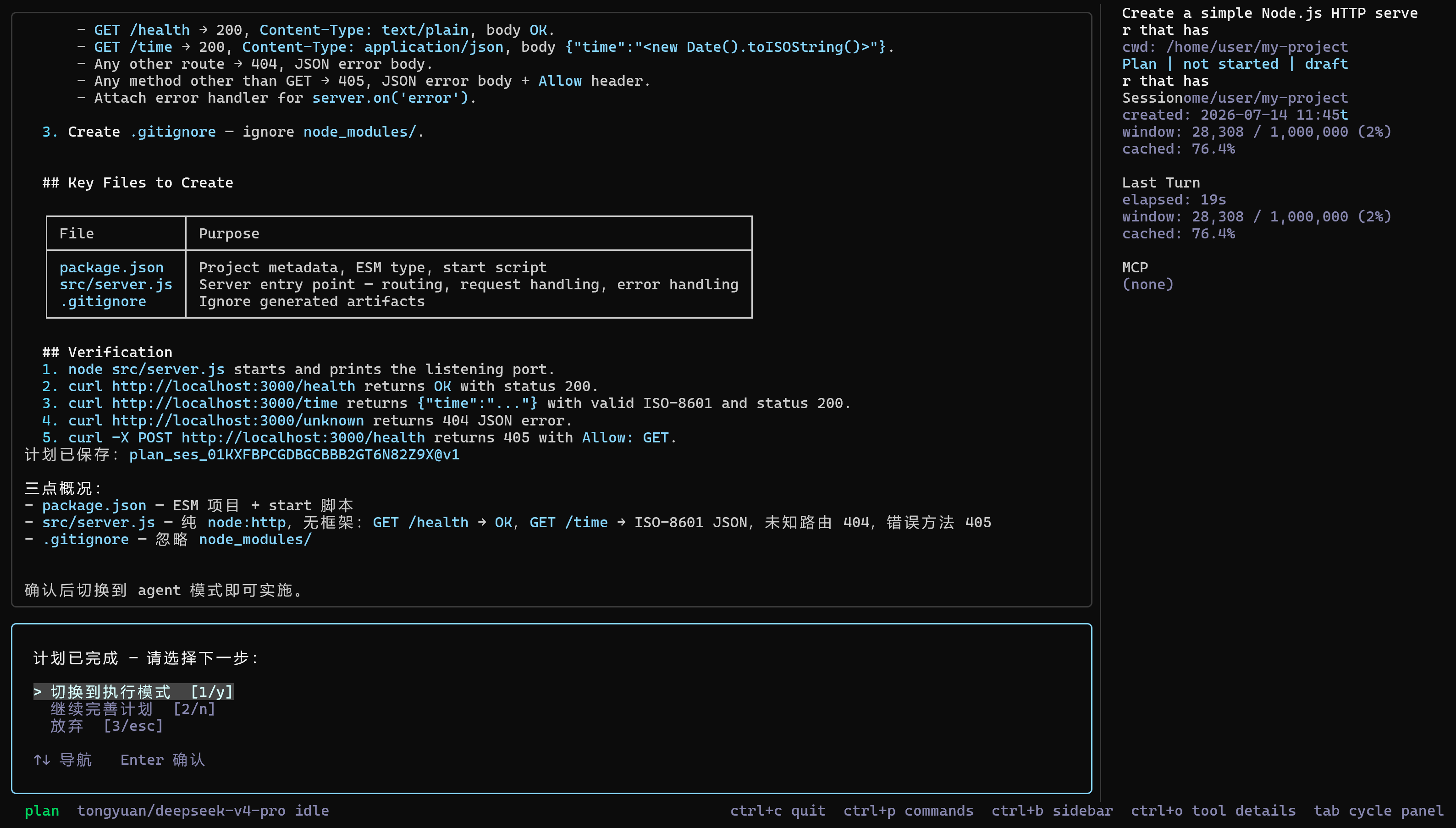
Plan mode
Agent mode workflow
Agent mode runs an execution-and-feedback loop. After you submit a task, the agent calls tools, evaluates their results, and chooses the next step until the task completes, fails, or you cancel it.
A typical Agent execution process:
- Receive the task: Describe the task and press
Enter. - Prepare context: Mogick assembles system instructions, retrieved memory, project information such as
AGENTS.mdand Git status, and any compacted history. - Request the model: The response streams into the TUI. The model may answer directly or request one or more tools.
- Run tools: Mogick evaluates permissions, runs approved tools, and adds structured tool results to the next model request.
- Continue the loop: The model uses those results to choose the next step. A task may span many tool calls and model turns.
- Request approval when required: Approval cards show the intended operation, risk, and parameter preview before a gated tool call runs.
- Complete the turn: The turn ends when the model returns a final response without another tool call.
Press Esc to request cancellation of the current run. Completed tool operations remain in place; operations that have not started are abandoned.
Plan mode workflow
Plan mode follows an Explore → Plan → Confirm workflow.
Phase 1: Exploration
Use read-only tools to inspect the project structure, search relevant code, and review Git history. Common tools include file.read, file.glob, file.grep, git.log, and git.diff. Plan mode cannot modify the workspace.
Phase 2: Planning
Use plan.write to create the execution plan. Its default rewrite mode replaces the previous draft; patch applies a unified diff to the latest draft. Each update creates a new Plan Artifact version that is stored with the session.
A useful plan identifies the affected files, proposed changes, execution order, validation steps, and relevant risks.
Phase 3: Confirmation
After the plan is ready, press Shift+Tab. The TUI lets you execute the plan, continue planning, or discard it. Confirming execution switches to Agent mode and adds the approved plan to the agent's context.
Permission policy
Plan mode is always read-only, regardless of the selected session policy. Agent mode follows the active read, workspace, auto, or yolo policy. Review the policy when approving a plan; auto is the default for day-to-day work.
Agent loop
A round in Agent mode repeats the following phases until the model gives a final reply, an error occurs, or the user cancels:
- Prepare: Assemble system information, session history, compressed digests, memories, tools, and current input.
- Request: Send a streaming request to the current model.
- Parsing: Read text, think about content and call tools.
- Approve and execute: The permission gateway allows, prompts for confirmation, or denies each call. Independent read-only calls may run concurrently; side-effecting calls remain ordered.
- Inject: Add the tool results to the next model input and continue the cycle.
Pressing Esc requests cancellation of the current run. Completed tool side effects are not automatically undone; use Checkpoint or version control when rollback is required.
Tool results and long tasks
Mogick sends the model a compact representation of tool results while retaining the full run record as session evidence. Long conversations are compacted automatically as they approach the context window limit.