
Command palette and sidebar
The command palette is the TUI's navigation hub. Its hierarchical menu provides session management, model switching, MCP configuration, permissions, and preferences without requiring you to memorize commands. The sidebar summarizes context usage, MCP status, and task progress while you work.
Command palette
Press Ctrl+P to open the menu. Boolean settings display an On/Off submenu, with ✓ marking the current value.
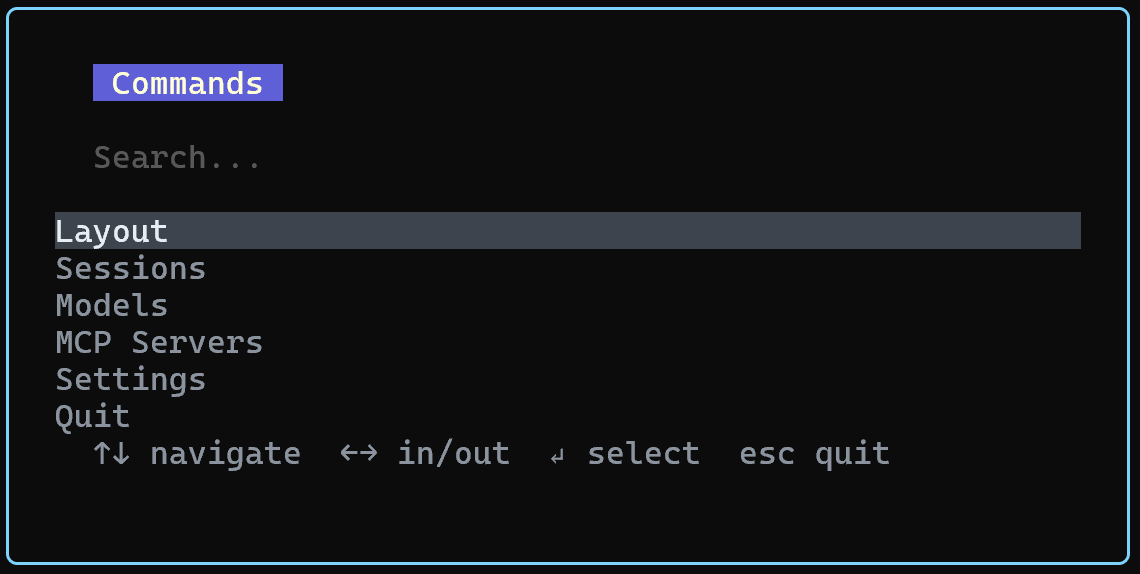
Use ↑ and ↓ to move through items, Enter to select, → to open a submenu, ← to return to the parent menu, and Esc to close the palette.
Menu structure
The top-level menu contains six sections:
Sessions    → New / Session list / Export
Models      → Model list (current model marked ✓) / Model info
MCP         → Global servers / Project servers / Enable or disable
Permissions → read / workspace / auto / yolo
Settings    → Language / Diagnostics / Experimental features
Layout      → Panel layout controls
Use Sessions to create, switch, or export sessions. Use Permissions to change the tool-call permission policy.
Configurable settings
| Settings | Options | Description |
|---|---|---|
| Language | Chinese / English | Switch the interface language, it will take effect after restarting |
| Diagnostics | On / Off | Record ACP and CRP protocol traces |
| Subagents | On / Off | Enable subagents; off by default |
| TOON encoding | On / Off | Encode tool results in TOON format; off by default |
Sidebar
Press Ctrl+B to show or hide the sidebar. It updates in real time and groups information into the following sections:
| Information block | Display content |
|---|---|
| Session information | Title, summary (automatically generated), session ID |
| Working directory | Current session directory and the base path for file operations |
| Resource usage | Context-window utilization and prompt-cache hit rate; turns red near the limit |
| Run statistics | Elapsed time for the current and previous turns |
| MCP status | Server connection status and number of tools |
| Model information | Current model and provider |